[Tip] How to Get a .mp4 Video URL for Watch a Video Challenge (Without File Manager)

If you're using the Standard Plan, you might notice that the File Manager (for hosting videos) is not available. No problem, you can still run Watch a Video Challenges using Vimeo.
This is a simple workaround to get a usable .mp4 video URL for your challenge.
Why Vimeo?
Vimeo allows you to host videos securely while still giving access to direct video file links (like .mp4), which Gametize requires.
Step-by-Step Guide
1. Upload Your Video to Vimeo
- Upload your video to Vimeo
2. Open Video File Links
- Click the three-dot menu on your video
- Select “Video file links”
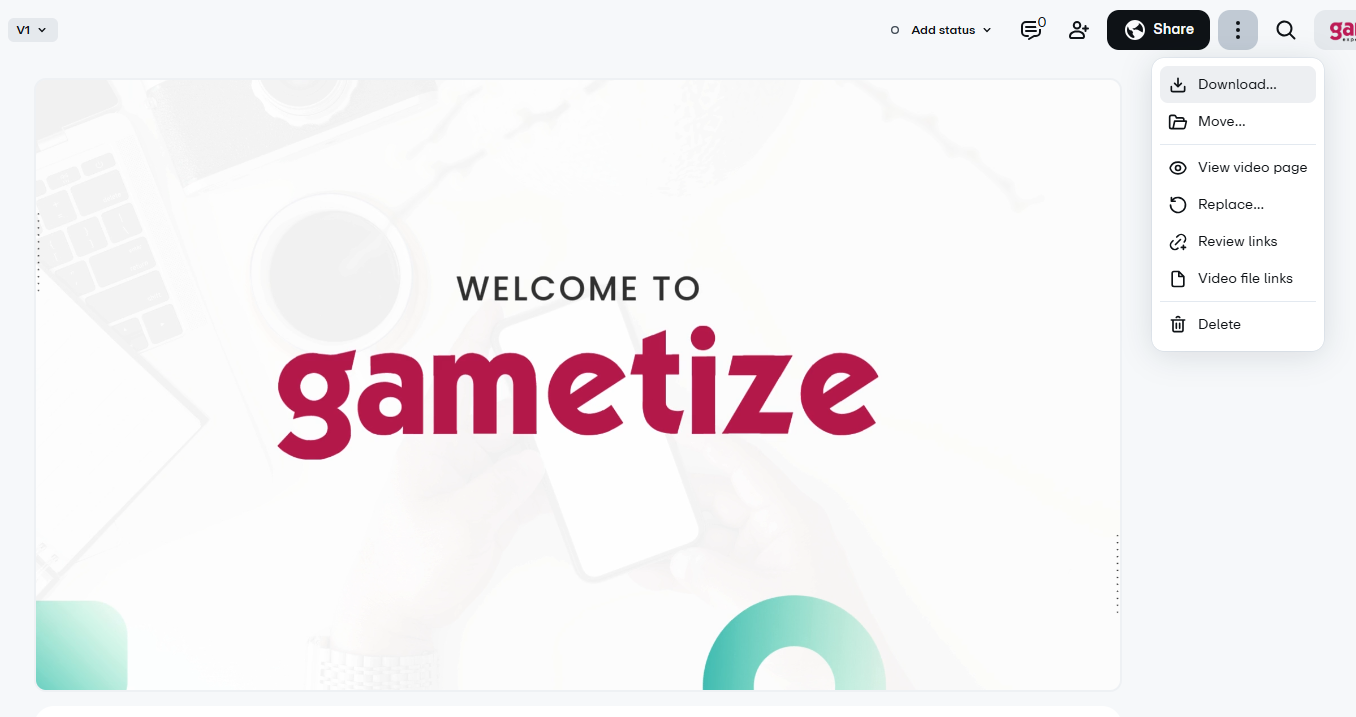
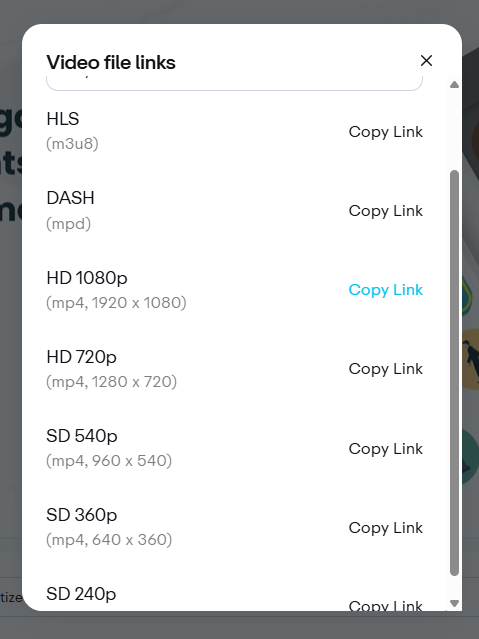
3. Copy the .mp4 Link
- Look for 540p or higher (e.g. 720p, 1080p)
- Click “Copy Link”
This link is your direct .mp4 video URL
4. Paste into Gametize
- Go to your Watch a Video Challenge
- Paste the link into the “URL to Video” field

Done. Your video will now play inside the challenge.
Important Notes
- Do NOT use the embed link or Vimeo page URL
- Only use the video file link (.mp4)
Please sign in to leave a comment.
Comments
0 comments