[Map Manger] Optimizing Your Map Experience on Gametize

When using the Map Manager on Gametize, your map image plays a big role in how smooth and engaging the user experience feels. Whether your project leans toward side-scrolling or vertical scrolling, keeping your image ratio optimized ensures the map loads fast, fits well on both screens, and avoids awkward cropping or stretching.
Here’s what you should know when designing your map:
1. Choose the Right Scrolling Direction
-
Side-scrolling works best for experiences that feel like a journey or progression, such as missions or levels arranged in sequence. It gives users a sense of movement and exploration. 👉 Example: gametize.com/project/cottage
-
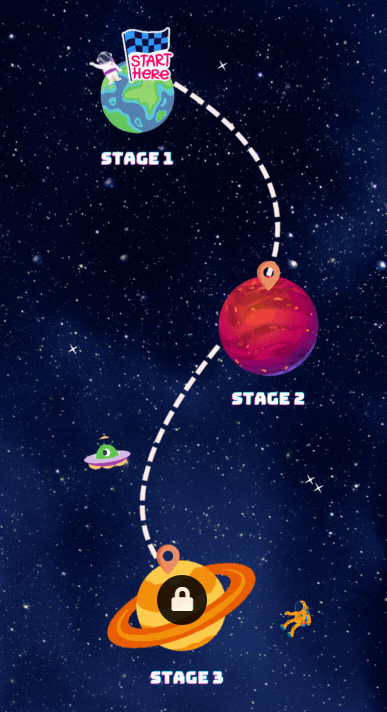
Vertical scrolling suits storytelling and challenge-based layouts where users progress from top to bottom, often used for quizzes or sequential challenges. 👉 Example: gametize.com/project/galaxy
2. Optimize Your Map Image Size
The Map Manager automatically scales maps across devices, but the image ratio you choose affects clarity and layout. Use the ratios below to get the best balance:
-
For both mobile and desktop: 430 × 900 pixels (recommended for most cases)
-
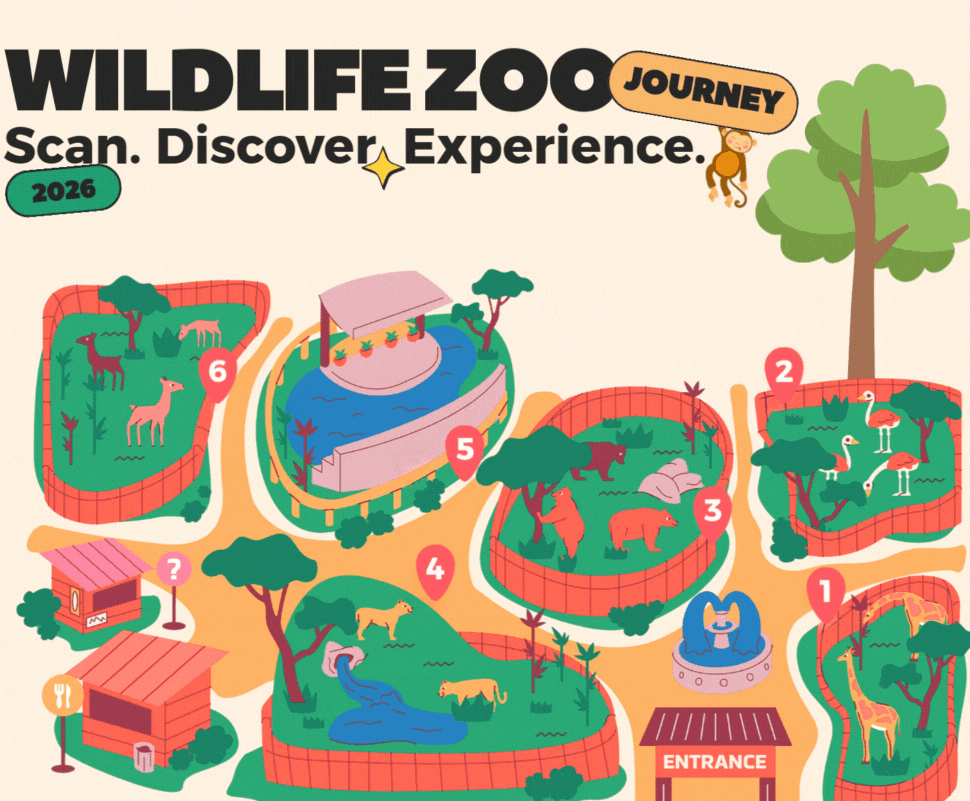
For desktop only: 1000 × 1000 pixels (best for wider, more detailed maps)
3. Final Tip
Before going live, always preview your project in both mobile and desktop views. The goal is consistency, players should enjoy the same smooth navigation experience no matter which device they use.
This simple setup ensures your Map Manager looks sharp, loads fast, and feels great on every screen.
Please sign in to leave a comment.
Comments
0 comments