How to use Gametize like Kahoot! with your Slides and Quizzes
Pinned Featured
We have an alternative to Kahoot, codenamed Dopamize. But the format isn't always ideal - for e.g. you cannot add videos or you wish for more control how the slides will appear.
With Gametize, you can transform your slides into a live quiz experience, similar to Kahoot. All you need are your slides, your quiz challenges, and a topic link. Here’s how:
1. Run Your Presentation as Usual
Prepare your presentation in PowerPoint, Google Slides, or any tool you prefer. Include all your videos, images, and key content. Deliver the session just like you normally would—no extra setup needed.
2. Flash the Quiz Question on Your Slides
After each content section or video, show a dedicated slide for the quiz (e.g., “Slide 2: Question 1”). This creates a smooth flow between learning and interaction, keeping your audience engaged.
For e.g.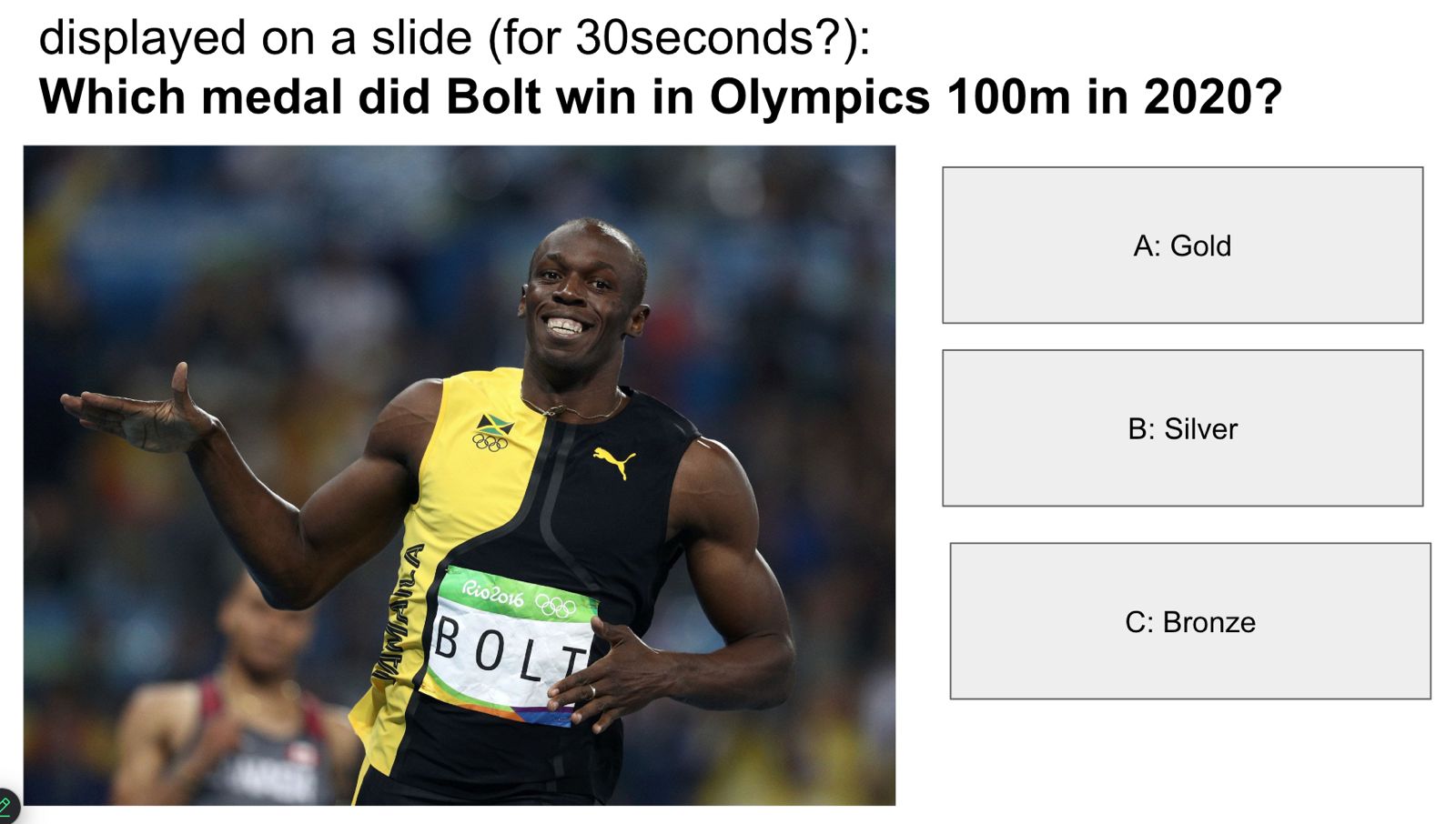
3. Let Players Join Instantly via QR Code
On the participants’ side, joining the quiz is simple. They scan the QR code linked to your Gametize topic or they are directed to the correct topic. Each quiz challenge is numbered (Question 1, Question 2, etc.), so when you reveal “Question 1” on the slide, players head straight to Question 1 in the app and submit their answer.
For e.g. https://app.gametize.com/challenge/617913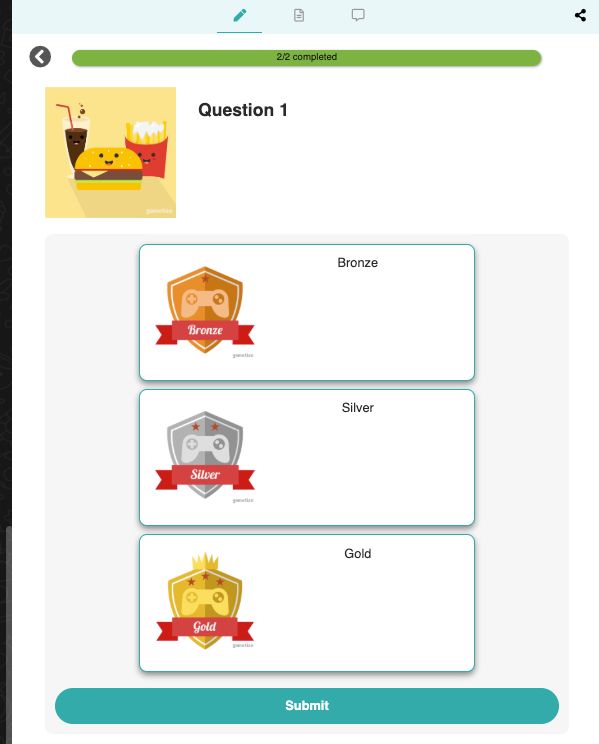
-
This ensures participants don’t skip ahead.
-
They stay in sync with your presentation since they only see the question when you reveal it.
4. Wrap Up with the Leaderboard
At the end of your session, display the Gametize leaderboard on screen. This adds excitement, gives recognition to top performers, and reinforces the competitive fun of the session.
✅ Pro Tip: Keep your quiz questions short and visually engaging. Pair them with images, GIFs, or quick scenarios to maximize energy in the room.
With this method, you’ll turn a standard presentation into an interactive experience that combines learning, competition, and fun—all without needing extra tools beyond your slides and Gametize.
Please sign in to leave a comment.
Comments
0 comments